
CKTIS / Learning and practice
Why JavaScript gives you 23 instead of 5: your first debugging exercise
Enter 2 and 3, get 23? Use a small JavaScript form to inspect types, convert values and test empty input, zero, invalid data and overflow.
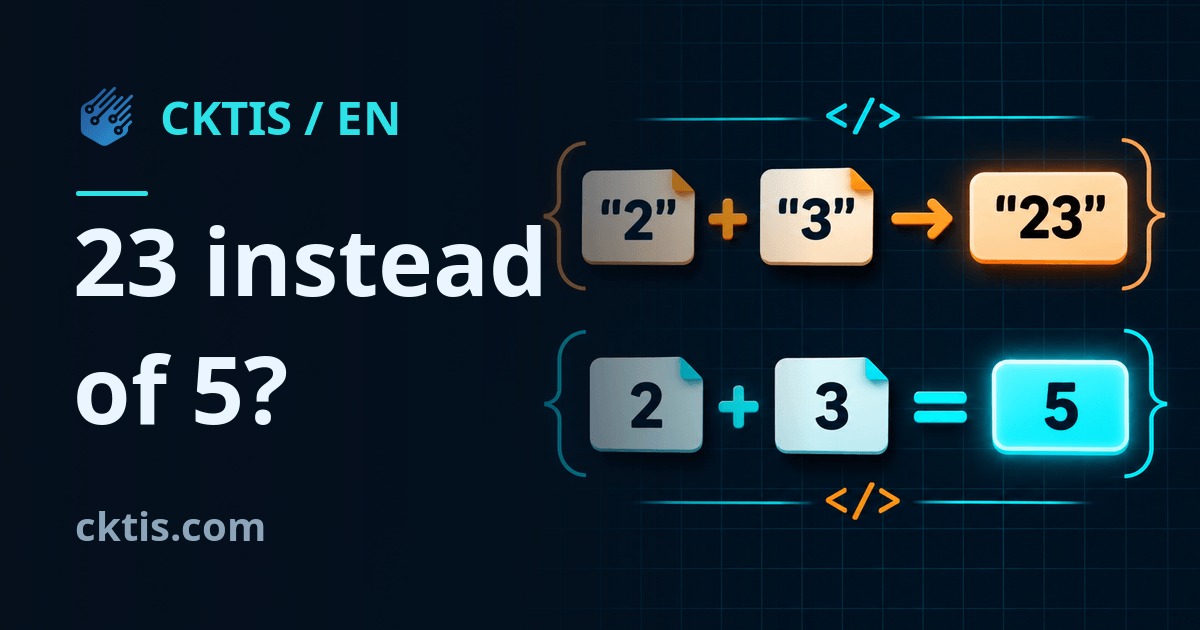
You enter 2 and 3 in a form, click the addition button and get 23. There is no error message. The page has not frozen. The program followed an instruction — just not the one you meant to give it.
This is a useful introduction to debugging: finding the cause of a mistake. You do not need a large application or paid tools. Two values, a few JavaScript instructions and one question are enough: what is actually stored in these variables?
First, predict the result
Look at these three operations. Before running them, write down the results you expect:
console.log(2 + 3);
console.log("2" + "3");
console.log("2" + 3);
The first produces the number 5. The second and third produce the text "23". Quotation marks in code are not decoration: they distinguish text from numbers. Both values can look very similar on screen, so looking only at the output can be misleading.
The + operator has two roles here. It adds numbers, but it also joins text. In this simple example, when one side is text, the other is converted to text too, and the two are joined. Imagine sliding a card labelled “3” next to one labelled “2”, instead of calculating their sum. The addition operator on MDN.
Rather than remembering this as a joke about “weird JavaScript”, develop the habit of checking data before performing an operation. The same problem can appear in a calculator, a product counter or an order form.
Why the form gives you text
This small example deliberately contains a bug. Save it as sum.html and open it in a browser. The button has a + sign, and the fields are labelled A and B. Enter 2 and 3:
<!doctype html>
<meta charset="utf-8">
<title>A + B</title>
<label>A <input id="a" value="2"></label>
<label>B <input id="b" value="3"></label>
<button id="add" type="button">+</button>
<output id="result" aria-live="polite"></output>
<script>
  const first = document.querySelector("#a");
  const second = document.querySelector("#b");
  const result = document.querySelector("#result");

  document.querySelector("#add").addEventListener("click", () => {
    result.textContent = first.value + second.value;
  });
</script>
This example runs locally; it is not an interactive form inside this article. We leave out the styling at first to make the mechanism clear. You do not install anything or send the entered data to a server.
An input element's .value property returns text. The user sees digits, but the program reads "2" and "3". Even changing the field to type="number" will not make .value return a number. The input type and the JavaScript value's type are different things. Input value documentation.
Inspect it in the browser tools
Open your browser's developer tools and the Console tab. On a computer, F12 often opens these tools; you can also use the browser menu. After clicking our button, check:
console.log(first.value, typeof first.value);
console.log(second.value, typeof second.value);
Both values will show string, meaning the text type. This is evidence, not a guess. When investigating your own bug, inspect the input, the place where it is transformed and the result, in that order. Avoid changing random characters because a snippet you found online “apparently helps”.
You can also set a breakpoint on the addition line instead of entering instructions manually. Execution will pause there, letting you inspect both values before the calculation. For now, console.log and typeof are enough; you do not need to learn the entire developer tools panel at once.
The fix is short, but has limits
In the first example, replace the line that sets the result with this:
result.textContent = Number(first.value) + Number(second.value);
Number explicitly converts both values. For "2" and "3", we get numbers, so addition gives 5. The word both matters: Number(first.value) + second.value still joins the result to text and displays 23 again for our inputs.
Do not try to fix everything with parseInt. It reads an integer and can discard a fractional part or accept the beginning of a string. For this task, we want to define the accepted input clearly instead of silently cutting pieces off it.
Conversion alone does not fully validate a form. Number("") produces 0, not a “missing input” signal. Meanwhile, Number("abc") produces NaN, a special value indicating that conversion to a number failed. An empty field and a deliberately entered zero mean different things here. Number conversion rules.
Add input validation
Replace everything between the <script> and </script> tags with this code. Do not append a second click listener to the existing one: we want one corrected way to handle the button.
const first = document.querySelector("#a");
const second = document.querySelector("#b");
const result = document.querySelector("#result");

function addInputs(left, right) {
  if (left.trim() === "" || right.trim() === "") {
    throw new Error("empty");
  }

  const a = Number(left);
  const b = Number(right);
  if (!Number.isFinite(a) || !Number.isFinite(b)) {
    throw new Error("invalid");
  }

  const sum = a + b;
  if (!Number.isFinite(sum)) {
    throw new Error("overflow");
  }
  return sum;
}

document.querySelector("#add").addEventListener("click", () => {
  try {
    result.textContent = addInputs(first.value, second.value);
  } catch (error) {
    result.textContent = error.message;
  }
});
We have kept short error codes to focus on the mechanism: empty means an empty field, invalid an invalid value, and overflow a result too large to represent as a finite number. In an ordinary application, replace these with clear messages in the user's language.
First, trim() also detects a field containing only spaces. Conversion comes afterwards. Number.isFinite checks whether the result is a finite number, rejecting both NaN and infinity. We check the sum separately because the calculation itself can exceed the range. Number.isFinite on MDN.
This demonstration accepts the notation understood by Number, including a decimal point and scientific notation. It is not a finished financial calculator or a complete implementation of local number formats. A decimal comma needs its own deliberate design decision; we do not automatically replace every comma in arbitrary text.
Test more than 2 and 3
After making the fix, try several inputs:
- A:
2, B:3→5. - A:
0, B:3→3. Zero is valid input. - A: empty field, B:
3→empty. - A: spaces only, B:
3→empty. - A:
abc, B:3→invalid. - A:
2.5, B:3→5.5. - A:
2,5, B:3→invalidunder our chosen rules. - A:
1e308, B:1e308→overflow.
This small check guards against a common illusion: “It worked for one example, so it is finished.” You do not need to imagine every possible input immediately. Begin with an ordinary case, zero, an empty field and unexpected data.
Notice that Number.isFinite does not guarantee the accuracy of every calculation. JavaScript numbers have limited precision. Money, very large numbers and calculations requiring specific accuracy need an appropriate representation and rounding rules. Fixing the result 23 does not automatically solve every arithmetic problem.
Now make one small change
Add a third field, C. First, predict what will happen if you accidentally leave its value as text. Then change the function to validate all three fields and add the numbers. Also test an empty third field and a zero entered there.
If you can explain why the previous version produced 23, what each condition checks and why one successful test is not enough, you are practising programming — not just copying a finished line.
You can practise types, operators, conditions and functions in the CKTIS beginner JavaScript course. Return to this experiment after a lesson and see whether you can reconstruct the solution independently.